
Analyze keywords per page and folder
Rank trackers follow a list of keywords you give them. Keyword Hero starts from the visits, so it shows the long tail as well: the hundreds of rare searches that each bring a visit or two. Google says that around 15% of its daily searches have never been seen before. This guide shows them for one page or one folder.
Time: about 10 minutes · You need: a few weeks of data
One landing page
Section titled “One landing page”In the app: open the Landing Page report and pick the page.
In Google Analytics: open the Keyword Hero report through View in
Google Analytics. It already shows landing_page as the secondary
dimension.
-
Click the filter at the top of the report.
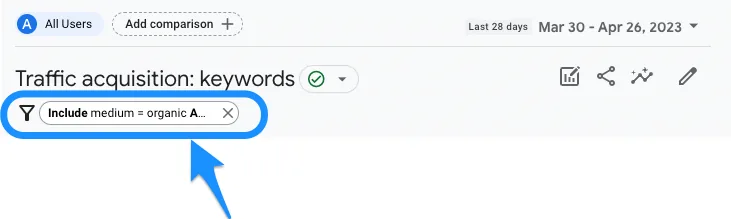
-
Choose Add new condition, pick
landing_page, and enter the page. -
Choose Apply.
You now see every search that led to that page.
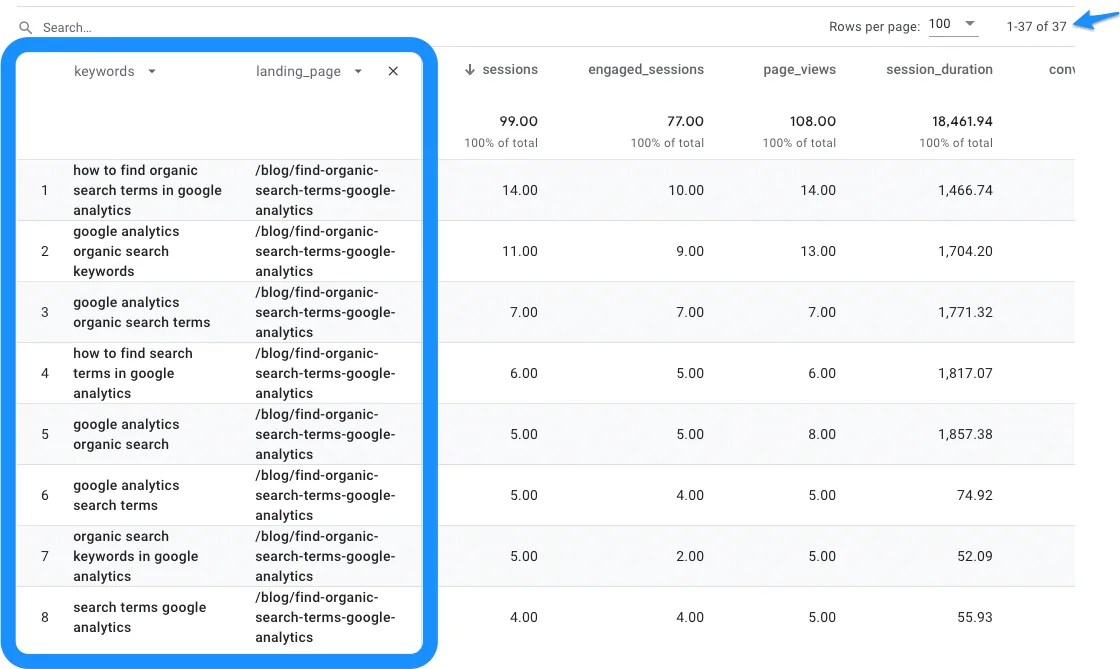
To compare a group of pages, add several values to the same condition.
A whole folder
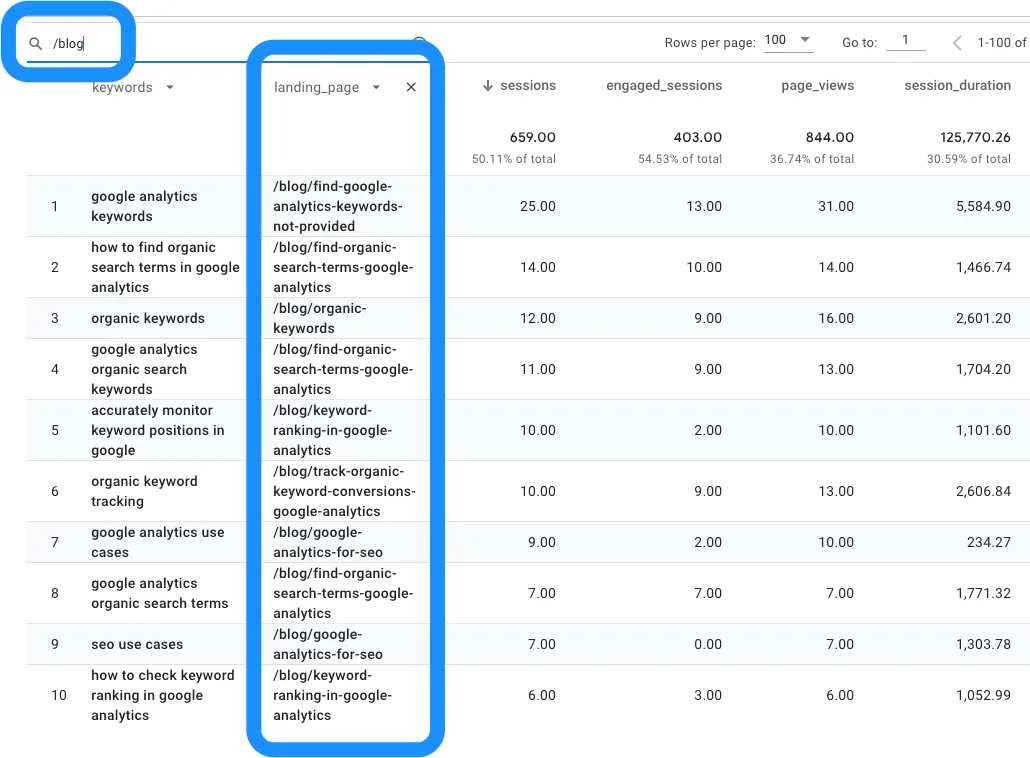
Section titled “A whole folder”Use the search box above the table instead of a filter, and keep only the
default filters, medium = organic and source = google.

Type the folder, such as /blog, and press Enter. The table shows the
keywords for every page whose path contains that text. The match is
inclusive: /blog also matches /blog-archive.
What to look for
Section titled “What to look for”- Words per query. Long queries mean visitors arrive with specific questions. Does the page answer them?
- Recurring combinations. Terms that keep appearing together are a subheading, or a page of their own.
- Queries the page does not serve. A keyword with high bounce rate on this page may belong on a different one. See Fix keyword cannibalization.
The list grows the longer Keyword Hero runs. Export it to count words and group queries in a spreadsheet.