
Track key events
Knowing which keywords bring sales, not just visits, is the most valuable thing Keyword Hero does. For that it needs to know what counts as a result on your website. Whatever you choose becomes the conversion metric in the Keyword Hero data, and revenue comes along with it.
Time: 2 minutes · You need: a paid plan, and key events or ecommerce tracking in your original Google Analytics property
Before you start
Section titled “Before you start”- The key event has to exist in your original property. Keyword Hero can only pass on what Google Analytics already records. Google’s help explains how to mark an event as a key event.
- An event is not enough on its own. Plain events cannot be selected. In Google Analytics, open Admin → Events and mark the event as a key event, and it becomes available.
- Your plan sets the number. Big Hero tracks one key event, Giant Hero three, Ultimate Hero ten. The free plan tracks none. See Plans and limits.
1. Open the key event step
Section titled “1. Open the key event step”-
Open your Keyword Hero profile.
-
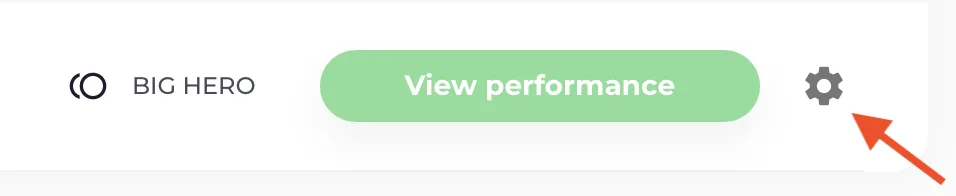
Click the gear icon next to the domain.
-
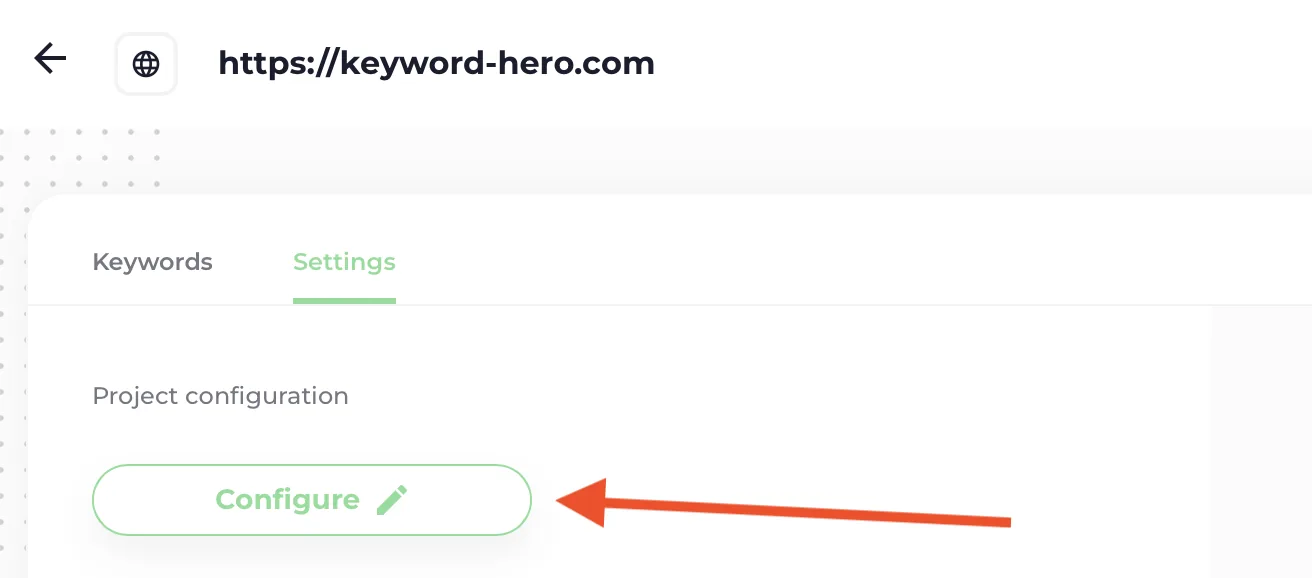
Choose Configure.
-
Click the second disc at the top of the page.
2. Choose the key events
Section titled “2. Choose the key events”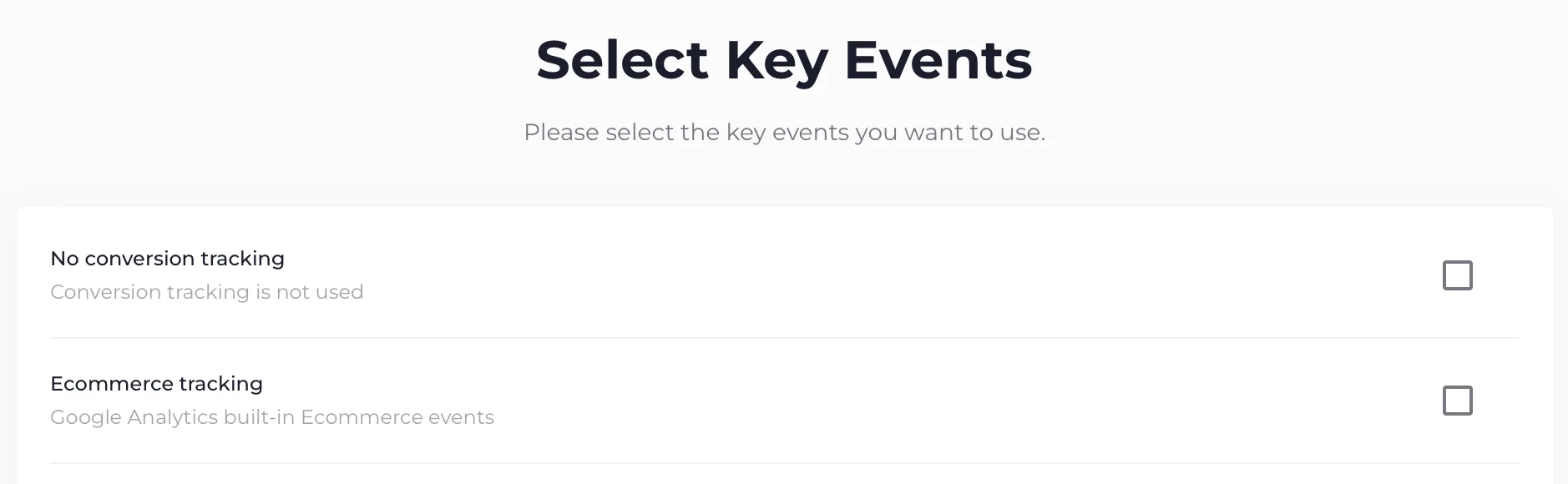
- Ecommerce tracking: choose it if your site uses it. You get every transaction and its revenue.
- Individual key events: choose up to your plan’s limit.
3. Save
Section titled “3. Save”Choose Continue.
Check it worked
Section titled “Check it worked”After the next daily run, the Total conversions figure on the Overview has a value, and the keyword table has a conversions column. With several key events, the column selector lets you choose which ones to show.
In the Keyword Hero property in Google Analytics, each key event gets its own
custom metrics, such as conversions_demo_booked and
revenue_demo_booked. See The Keyword Hero property.
If every key event shows the keyword (not provided), see Key events show
(not provided).