
Work with secondary dimensions in GA4
Most guides on this site use the same few moves in the Keyword Hero report in Google Analytics: change a dimension, filter on one value, sort by a metric. This page shows each move once.
Time: 10 minutes · You need: access to the Keyword Hero property
Open the report
Section titled “Open the report”Open the project in the app and choose View in Google Analytics. This
opens the report with keywords as the primary dimension, landing_page as
the secondary, and the filters medium = organic and source = google.
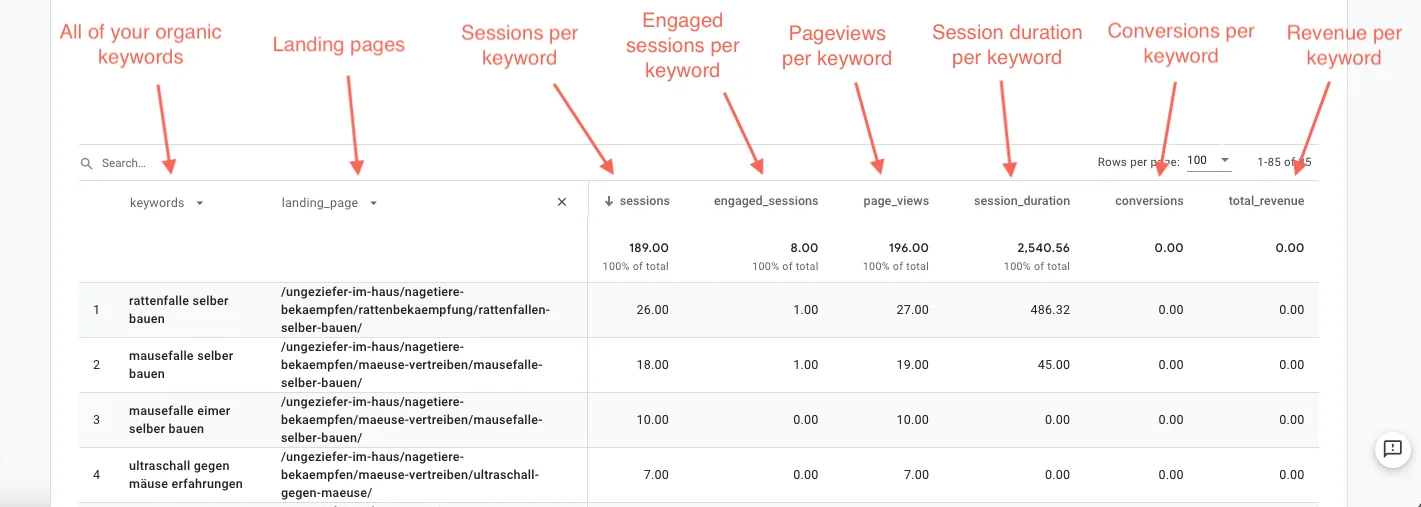
If you open the property directly, the report is not set up this way. Save it once to avoid that.
Change the secondary dimension
Section titled “Change the secondary dimension”Click the current secondary dimension, such as landing_page, or the + if
there is none. Type the name of the dimension and select it.
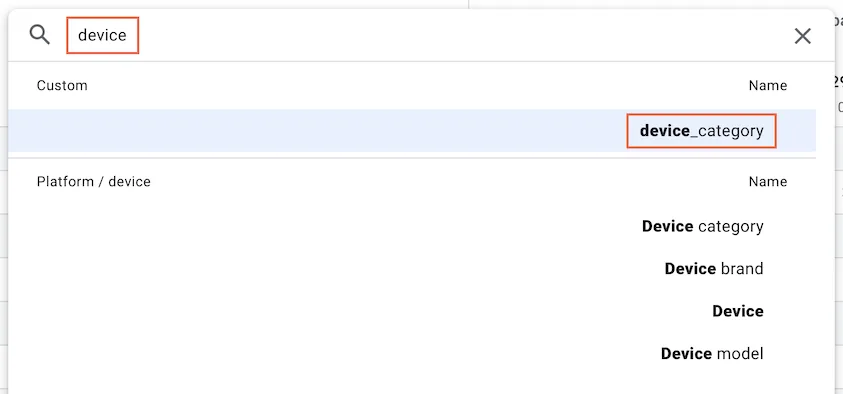
To remove it, click the x next to it. Each keyword is then one row.
The same works for the primary dimension. Set landing_page as primary and
keywords as secondary to look at the report page by page.
The Keyword Hero property lists every dimension.
Filter on one value
Section titled “Filter on one value”Click the filter at the top of the report, choose Add new condition, pick
a dimension, such as keywords or landing_page, and enter the value.
Choose Apply.
Keep the two default conditions, medium = organic and source = google.
Without them the report includes sessions Keyword Hero did not process.
Sort by a metric
Section titled “Sort by a metric”Click a column header. The arrow shows the direction; click again to reverse
it. Sorting by conversions or total_revenue is the start of Find your
money keywords.
Add search impressions
Section titled “Add search impressions”search_impressions is not in the default report. It puts the Google
impressions for each keyword in the same row as its sessions and conversions:
the whole funnel in one line.
- Click the pencil icon, Customize report.
- Open Metrics and choose Add metric.
- Pick
search_impressionsand drag it to where you want the column. - Choose Apply, and save the report if you want to keep it.
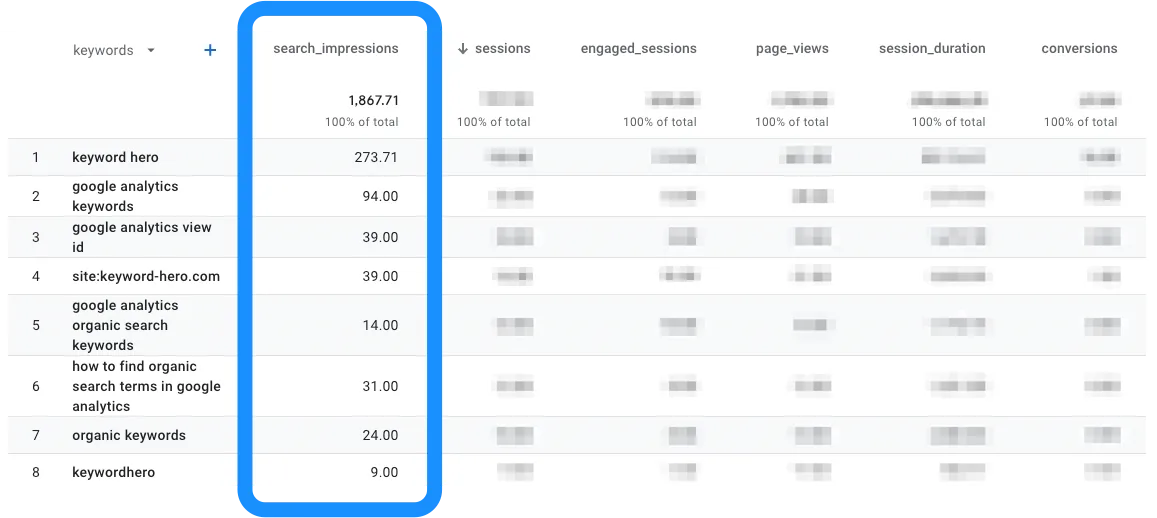
Go further in Explorations
Section titled “Go further in Explorations”Every Keyword Hero dimension and metric also works in Explore, Google Analytics’ free-form reports. Use it for pivots and segments the standard report cannot do.