
Monitor keywords over time
Seasonality, slow declines and the effect of an algorithm update only show up over months. Search Console keeps 16 months, which is not enough for a clean year-on-year comparison. The Keyword Hero property in Google Analytics keeps your keyword data for as long as you keep the property, even after you cancel.
Time: about 10 minutes · You need: data covering the period you want to compare
1. Isolate the keyword
Section titled “1. Isolate the keyword”In Google Analytics: open the Keyword Hero report through View in Google Analytics.
- Remove
landing_pageas the secondary dimension. - Edit the filter. Keep
medium = organicandsource = google, addkeywordsexactly matches your keyword, and choose Apply. - Set the date range you want to look at.
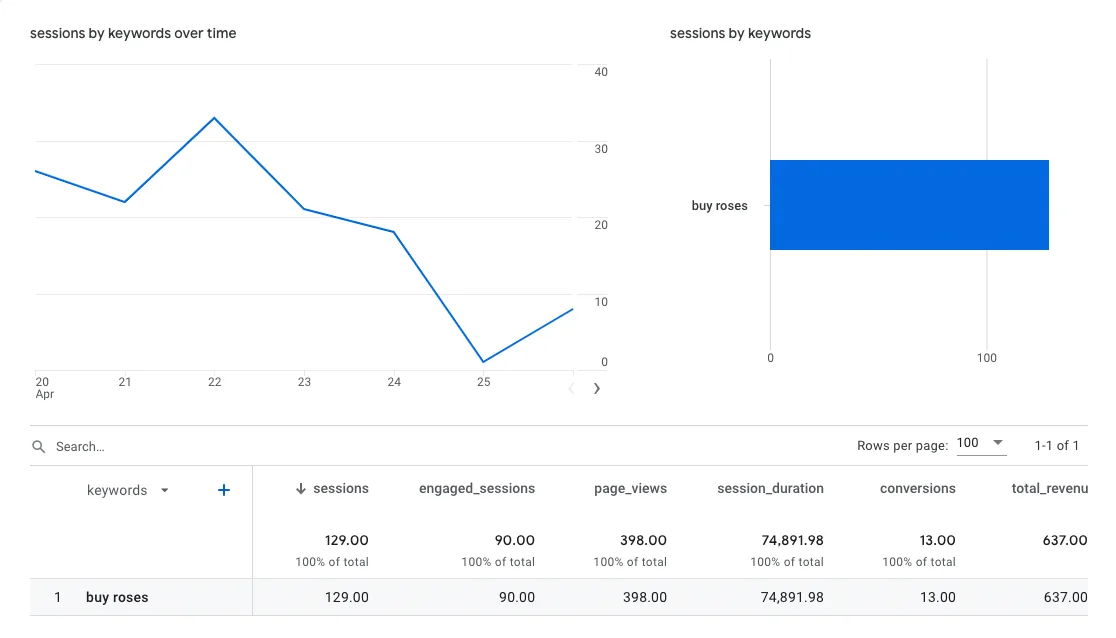
In the app: filter on the keyword in the filter bar and widen the date picker. With historical data loaded, the app reaches back further than your setup date.
2. Read the trend
Section titled “2. Read the trend”- A weekly rhythm is normal. Compare the same weekdays.
- A step change on one day has a cause: a release, a lost link, a Google update. Check your log.
- A slow decline over months usually means a competitor caught up, or the page aged.
3. Keep a log of changes
Section titled “3. Keep a log of changes”Google Analytics 4 has no annotations. Keep a shared document or sheet with the date of every content change, release and confirmed Google update. Half a year later it is the only way to explain a step in the chart.