
Add Search Console
Search Console is one of the sources Keyword Hero needs to match keywords, and the setup does not work without it. This page covers the Search Console step of the wizard, including the two states that stop people: Verify and Create account.
Time: 5 minutes, plus Google’s verification · You need: the Google account that set up Keyword Hero
Before you start
Section titled “Before you start”The Search Console properties have to be reachable from the same Google account you use for Keyword Hero. If they sit in another account, add your Keyword Hero account as a user there first: in Search Console, open Settings → Users and permissions → Add user.
1. Open the Search Console step
Section titled “1. Open the Search Console step”- Open your Keyword Hero profile.
- Click the gear icon next to the domain and choose Configure.
- Click the third disc at the top of the page.
During a first setup you are already on this step.
2. Select every matching property
Section titled “2. Select every matching property”Select a property for every hostname and protocol your data stream receives
traffic on: www. and the bare domain, https:// and http://, and each
subdomain. Search Console treats each of these as separate data unless you use
a single Domain property that covers them all.
A hostname without a property keeps its traffic unmatched, and it shows up as
(not provided)_subdomain_add_searchconsole. See Keyword
labels.
3. If a property shows Verify
Section titled “3. If a property shows Verify”
The property exists, but Google does not yet know you own the website. Click Verify and follow Google’s steps. Google’s verification guide lists the methods.
4. If a property shows Create account
Section titled “4. If a property shows Create account”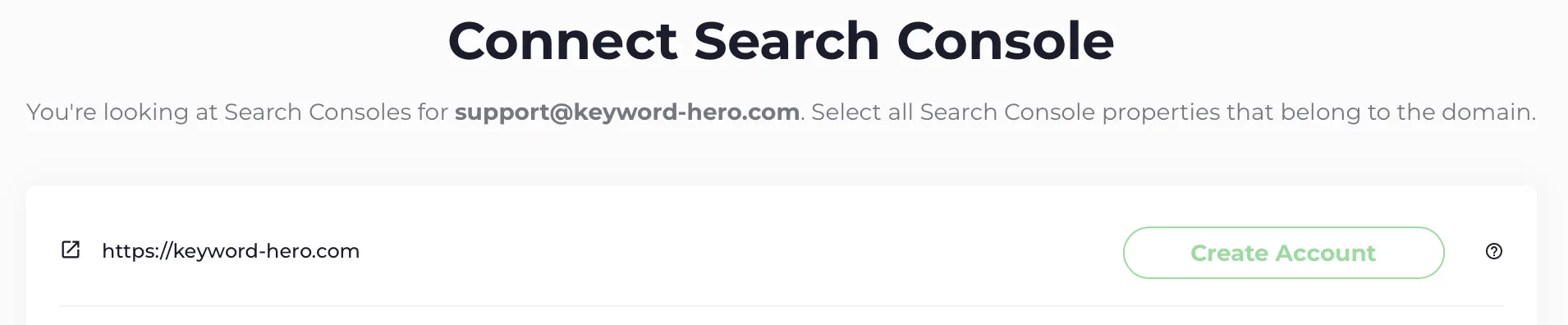
There is no Search Console property for this website yet.
- Make sure you know the address of your sitemap. A CMS such as WordPress usually generates one.
- Click Create account and follow the steps. Google’s getting started guide has the detail.
- The button changes to Verify. Continue with step 3 above.
5. Save
Section titled “5. Save”Choose Continue to save the step.
Check it worked
Section titled “Check it worked”Every property you selected shows as selected when you open the step again. New Search Console properties collect data from the day they are created, and Search Console needs about three days before the first data arrives, so give a new property about five days before judging the match rate.
If the match rate stays low, see Low match rate.