
Quickstart
By the end of this page Keyword Hero will be matching the organic sessions in your Google Analytics 4 property to the search terms behind them. The first keywords appear within 24 hours.
Before you start
Section titled “Before you start”- A Google account with access to Google Analytics 4 and Search Console for the website. Keyword Hero signs in with Google and has no passwords of its own.
- Edit rights on a Google Analytics account. Keyword Hero creates a new property to hold your keyword data, and that needs edit rights on the account, not only on a property. Cannot create the property covers the way around it if you do not have them.
- A verified Search Console property for every hostname the website runs on. You can create one during setup if it is missing.
- About five minutes.
1. Create your account
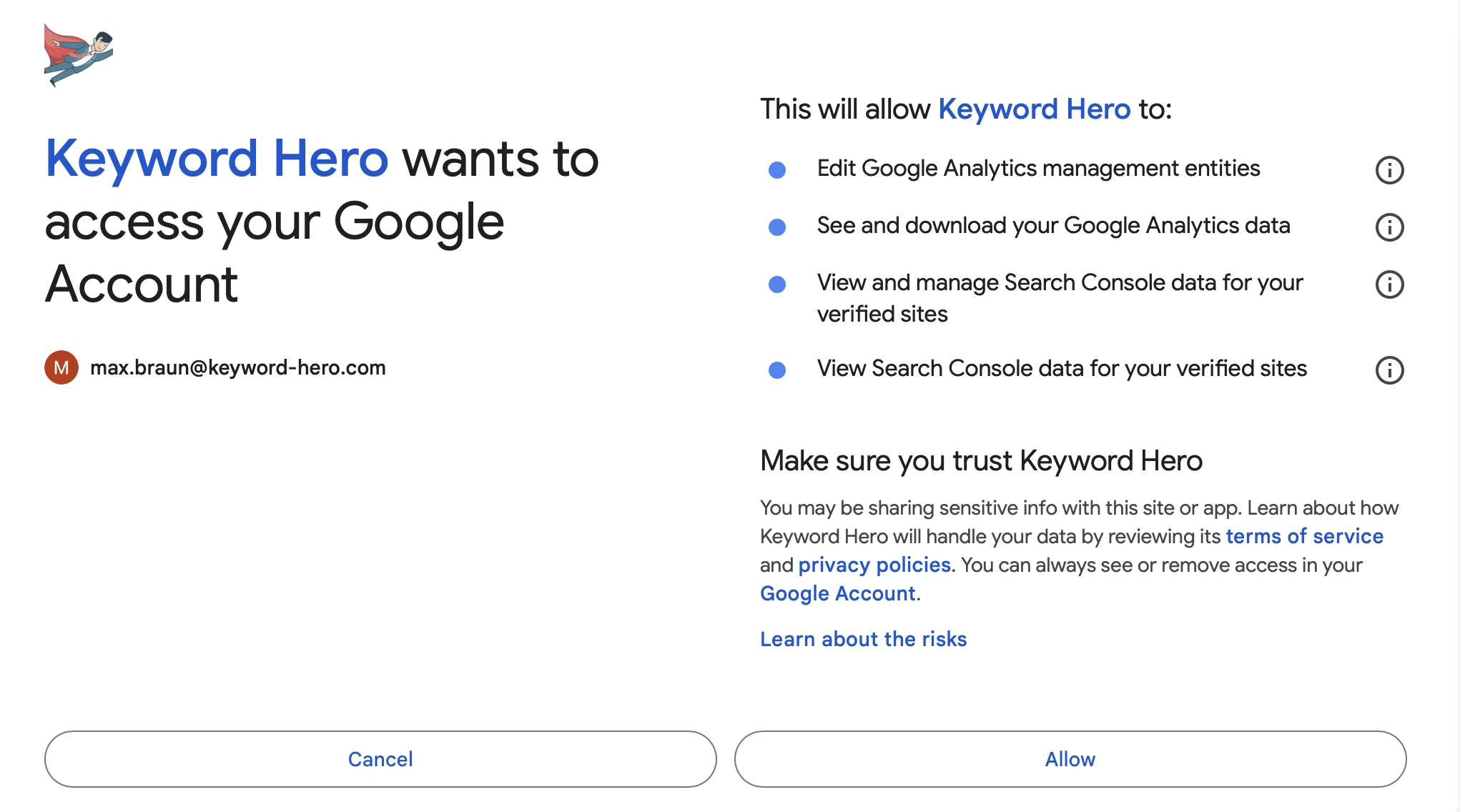
Section titled “1. Create your account”Choose the Google account that has access to your Google Analytics. Google then asks you to allow Keyword Hero access to Analytics and Search Console. Allow both: Keyword Hero cannot match keywords without either of them.
You land in the setup wizard. It has five steps, shown as discs at the top of the page. You can come back to any of them later through the project’s Configure button.
2. Choose the property and data stream
Section titled “2. Choose the property and data stream”Three columns, copied from the Google Analytics admin: Account, Property and Data Stream. Pick the ones that belong to the website, one click in each column, then continue.
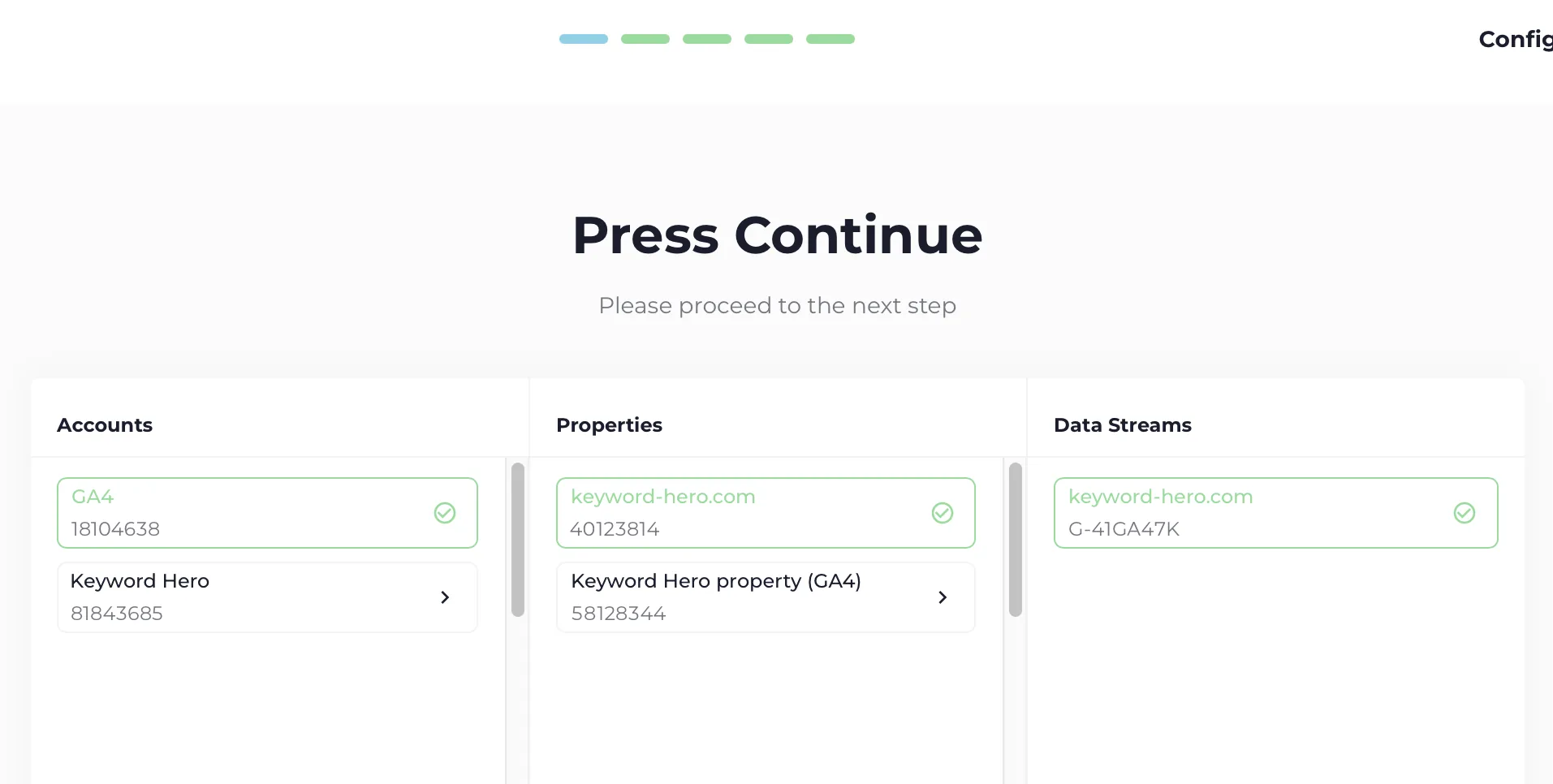
This is the data Keyword Hero reads. It is never changed.
3. Choose your key events
Section titled “3. Choose your key events”Pick what counts as a result on your website. Keyword Hero attributes these to the keyword that brought the visitor.
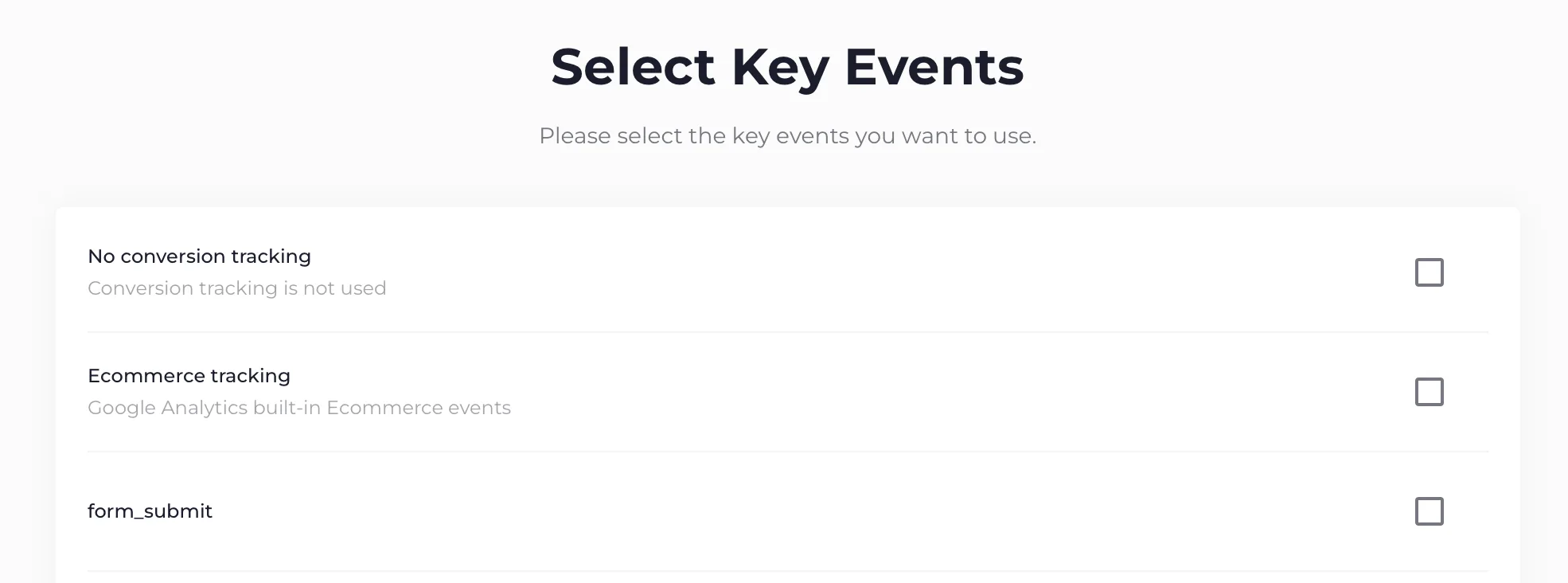
- Your site has ecommerce tracking: choose it. You get every transaction and its revenue.
- Otherwise: choose the key events that matter, such as a form submission or a demo booking.
- You are not sure what tracking you have: choose No tracking. You can change it later.
Key event tracking is part of the paid plans, and the number of key events depends on the plan. See Track key events.
4. Connect Search Console
Section titled “4. Connect Search Console”Select every Search Console property that covers the website. The most likely ones are listed on top.
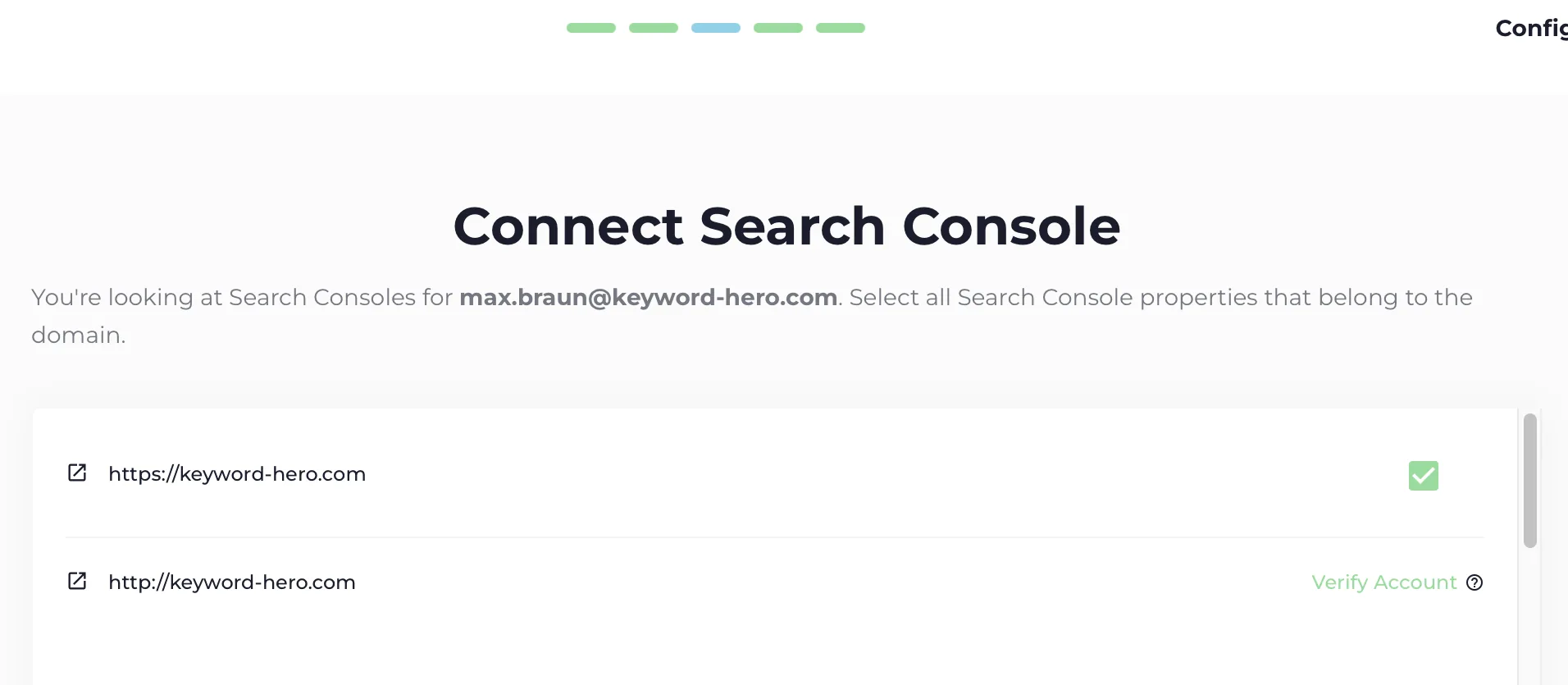
Select one for every variant the data stream receives traffic on:
www.and the bare domainhttps://andhttp://- every subdomain, such as
blog.orshop.
A missing one does not stop the setup, but its traffic stays unmatched. If a property shows Create account or Verify, see Add Search Console.
5. Create the Keyword Hero property
Section titled “5. Create the Keyword Hero property”Choose the Google Analytics account that will hold your keyword data. Keyword Hero creates a new GA4 property there, called Keyword Hero property (GA4) – your property name.
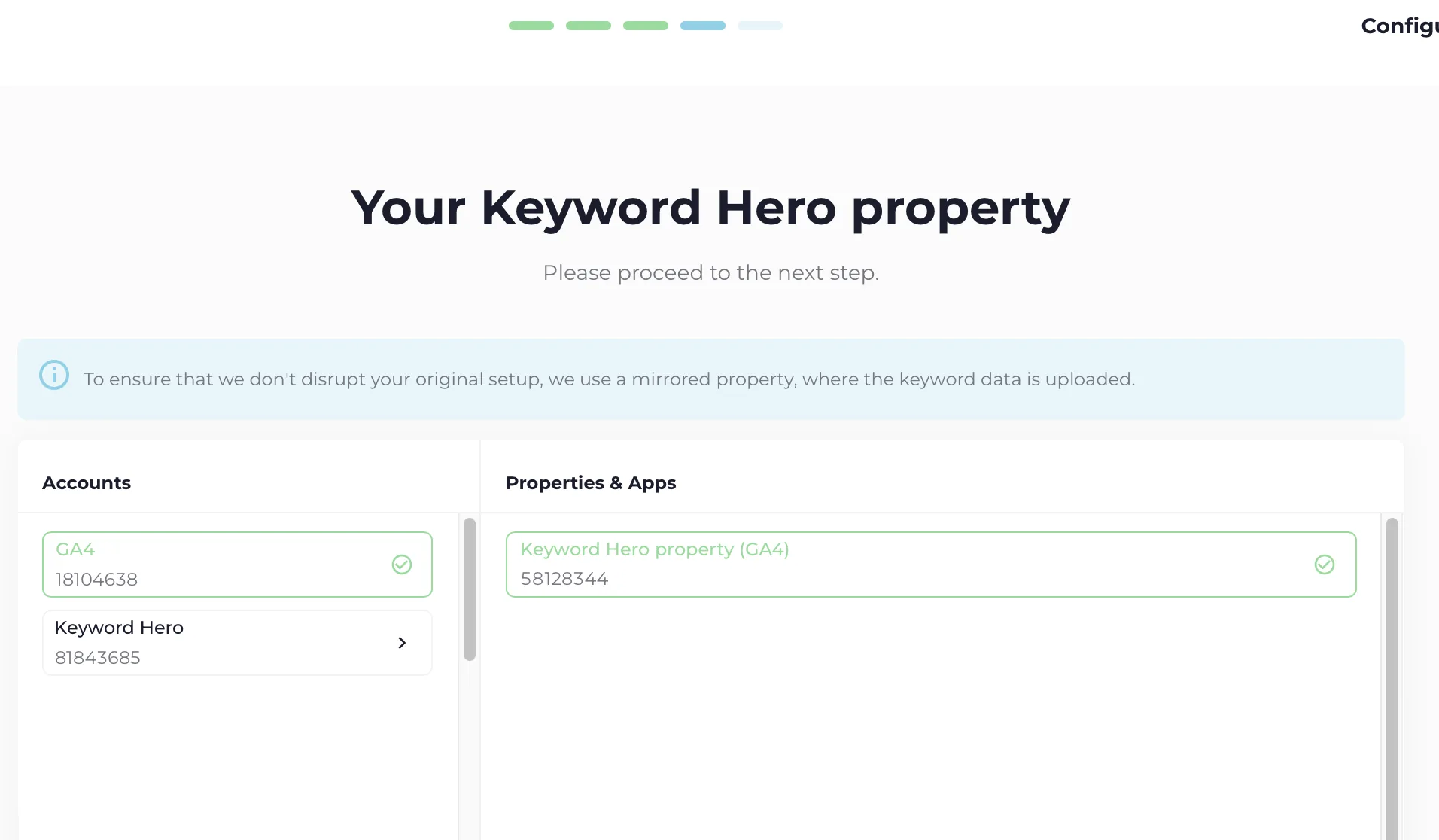
If every account is greyed out, you do not have edit rights on any of them. Cannot create the property has three ways around it.
6. Choose a plan
Section titled “6. Choose a plan”Keyword Hero recommends a plan based on your organic sessions and the key events you picked, and marks it Recommended. The free plan, Little Hero, covers 2,000 organic sessions a month without key events.
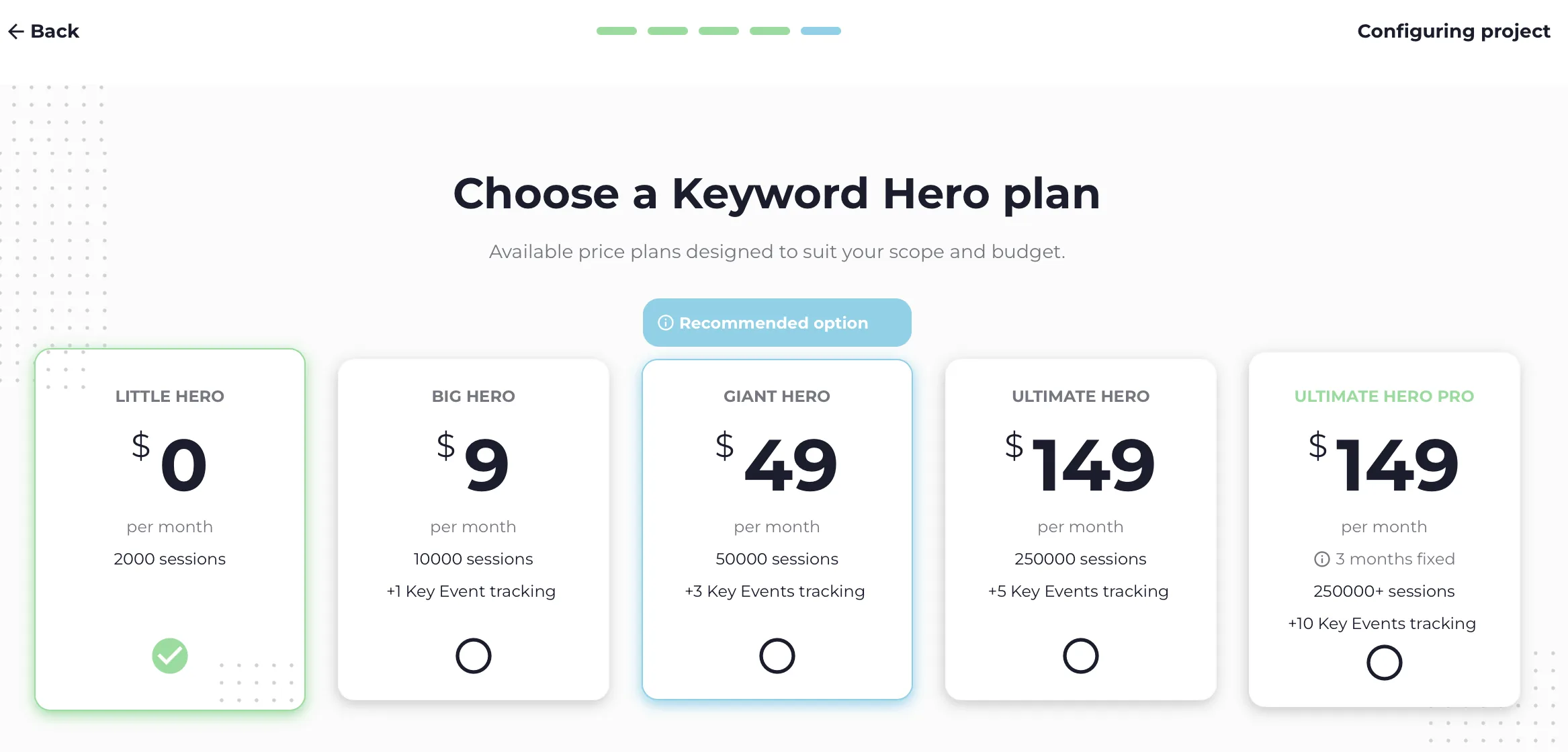
Paid plans are billed through Stripe. Choose your plan explains how to size one yourself.
Check it worked
Section titled “Check it worked”Keyword Hero processes your data once a day, so there is nothing to see straight away.
- Within 24 hours the first keywords appear in the app. Open the project from the projects list.
- Up to 24 hours later they appear in the Keyword Hero property in Google Analytics, because Google processes uploaded data on its own schedule.
If the app still shows nothing after 48 hours, work through No data.
Find your way around the reports: The Keyword Hero reports.